


A customer has just paid, smiled, and promised to leave a review. The problem is that goodwill disappears quickly once they drive away. If the request depends on them remembering your business name, finding the right Google listing, opening the review composer, and navigating the process alone, many satisfied customers won’t complete it.
The fix is simple, but the execution needs to be deliberate. Google now lets Business Profile owners create a direct review link and download a QR code from the same workflow, so you can place the request inside your normal customer follow-up process instead of treating reviews as an occasional favor. This guide explains how to generate a Google review link, verify it, and use it across SMS, email, receipts, and in-person touchpoints without relying on incentives or risky review tactics.
Table of Contents
- The Review You Almost Got Today
- Why Google Reviews Decide Who Gets the Call
- Pulling the Review Link From Your Google Business Profile
- Understanding Short Links and Place ID URLs
- Where to Put the Link So Customers Actually Click
- Asking for Reviews Without Crossing the Line
- Your One-Week Review Link Rollout Plan
The Review You Almost Got Today
The mobile detailing technician finishes the final pass. Paint catches the afternoon light, the tires are dressed, and the customer circles the vehicle with a smile that confirms the work met expectations. “I’ll leave you a great review,” they say before climbing into the car.
By the time the engine disappears down the street, the request has no clear path. There is no review link in the completion text, no QR code on the invoice, and no follow-up queued in the CRM. The customer was willing to help, but the easiest moment to act has passed.

Plumbers, electricians, dentists, HVAC companies, roofers, and other service businesses lose reviews the same way. The owner delivers good work and hears enthusiastic feedback, then leaves the customer to search for the business, open the correct listing, and find the review form alone. Businesses that ask consistently keep adding fresh customer proof while others rely on memory.
A review link cannot create satisfaction or compensate for a poor experience. It removes unnecessary searching between a happy customer and the review form. The official Google Business Profile review-link workflow provides a shareable link and downloadable QR code, allowing teams to place the request in SMS, email, receipts, invoices, chat follow-ups, and counter signage.
A practical review generation workflow also gives staff a clear rule: send the same neutral request after completed work, without incentives or pressure for positive feedback. Use the link where customers already interact with the business, then check that it opens the intended Google review screen before distributing it.
“Find us on Google” leaves the customer with extra work. A repeatable system turns a satisfied interaction into an obvious next action, whether the customer is at the counter or watching the service van leave.
Why Google Reviews Decide Who Gets the Call
Reviews influence local buying decisions before a prospect ever speaks with your team. ConsumerAffairs’ 2026 review research reports that 77% of Americans consider online reviews important when making purchasing decisions, while one-third won’t buy anything without reading reviews first. The same source summarizes other recent roundups reporting that 81% to 83% of consumers check Google reviews, with one report identifying Google as the destination for 81% of all online reviews.
Those figures explain why the review link matters, but the business impact is more practical than abstract SEO language.
- Call volume: A prospect who sees credible, recent feedback has a reason to contact you instead of continuing the search.
- Listing conversion: Your Google Business Profile has to turn visibility into calls, messages, bookings, or visits. Reviews help establish confidence at that decision point.
- Competitive click share: When nearby businesses offer similar services, review activity can become the visible difference between two otherwise comparable listings.
The link itself isn’t a ranking shortcut. It creates a cleaner path for customers who already had a good experience. That distinction matters because review generation can’t replace service quality, accurate business information, or a properly managed profile.
Operator’s rule: A review link without a distribution process is only an asset sitting in a dashboard.
For a broader acquisition framework, these local SEO lead generation tips help connect reputation signals with the rest of the local search journey. Businesses also need to understand how their website, profile, service areas, and conversion paths work together, which is covered in this guide to local SEO for small business in North Carolina.
The businesses that build durable visibility don’t merely hope satisfied customers remember to review them. They make the request timely, direct, and easy to complete. The first step is pulling the correct link from the profile.
Pulling the Review Link From Your Google Business Profile
Google’s current workflow is the safest starting point because it creates the link inside the Business Profile rather than relying on a third-party URL generator. Use a desktop browser when possible, especially if you manage multiple locations.
Follow the official desktop path
-
Sign in to the managing Google account. Open the Google Business Profile management experience and confirm that you’re using an account with access to the correct listing.
-
Choose the location. If the account manages more than one business, select the exact branch or service-area profile that should receive the reviews.
-
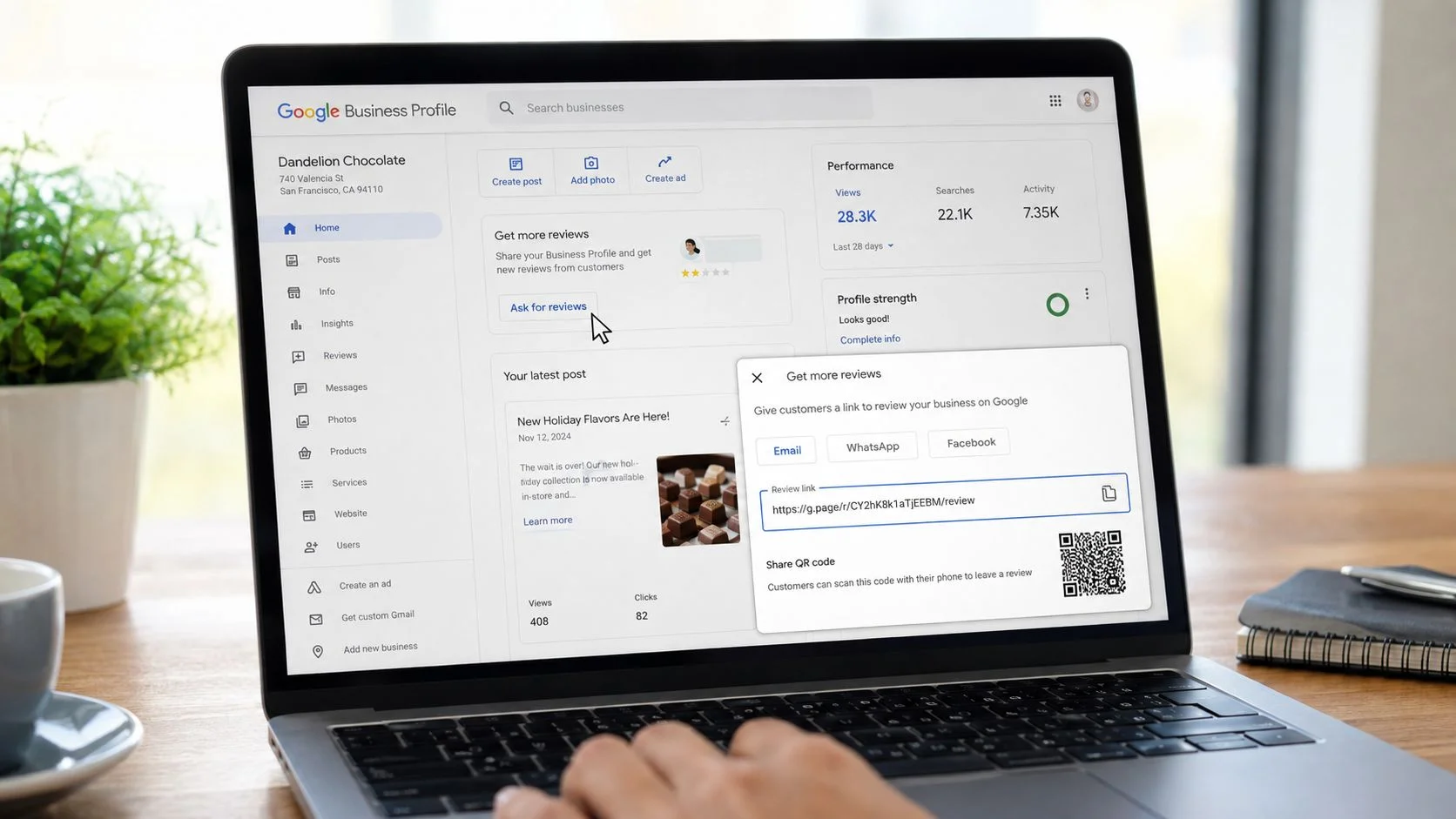
Open the review-request control. From the profile management menu, select Read Reviews, then choose Get more reviews. Google’s support instructions identify this as the path for creating the review link and QR code.
-
Copy the shareable link. Select the option to copy the link, then save it in your CRM, customer-service platform, or internal operating document. Label it with the location name so a dispatcher or front-desk employee doesn’t use the wrong branch.
-
Download the QR code. Google offers a QR-code download from the same workflow. Save the file in the format provided, then use it on printed materials, signage, receipts, or a technician handout.
-
Test before distribution. Open a private or incognito browser window, paste the link, and confirm that the correct business name and location appear with the star-rating and review-entry interface. Don’t send it to customers until that test passes.
Troubleshoot the common failures
A wrong location selection is the most damaging error because the link may still open successfully, just for the wrong listing. An unverified profile can also limit available management functions. Older Places or Maps interfaces may show different labels, so look for the review-request option rather than assuming every account will display an identical menu.
Mobile managers can repeat the process through the Business Profile app, using the review-request or Get more reviews control when it appears. Still, desktop retrieval is easier to audit, document, and compare across multiple locations.
Keep both the link and QR asset in a shared, access-controlled folder. The next decision is understanding which URL format you have, and when a Place ID-based link is useful.
Understanding Short Links and Place ID URLs
Google review URLs can look confusing because the visible format varies by account and workflow. The important question isn’t whether the address looks elegant. It’s whether it opens the correct listing directly to the review composer.
The official short format commonly appears as a g.page/r/…/review-style URL. Some accounts may instead provide a longer Google review endpoint. A Place ID-based version typically follows this structure:
`
The placeholder must be replaced with the correct Place ID for the business location. This method can be useful when the Business Profile interface behaves inconsistently across devices or when a developer needs a stable destination for an existing workflow. Google’s support and community guidance, summarized in this explanation of Google review-link formats, also emphasizes testing the destination rather than trusting the URL alone.
Choose the format by use case
| Format | Best fit | Main consideration |
|---|---|---|
| Google-generated share link | SMS, email, and digital follow-up | Easy to retrieve directly from the profile |
| Google-generated QR code | Receipts, cards, signage, and counter displays | Test the scan from printed material |
| Place ID URL | Custom systems and documented location workflows | Confirm the Place ID resolves to the intended listing |
Avoid random shorteners that add redirects or make customers question where the click will lead. If your communications platform needs a branded short address, evaluate a dedicated short URL domain, but keep the final destination pointed at the tested Google review composer.
You can also append campaign tracking to the surrounding workflow, such as identifying whether a request came from an invoice, SMS, or QR card. Don’t alter the destination in a way that breaks Google’s review interface. Before publishing anything, test the link on desktop and mobile and confirm the business name, address, and star selector all match.
If you’re improving the wider local presence, the review link should sit alongside the fundamentals in a practical guide to ranking on Google Maps in Charlotte.

Where to Put the Link So Customers Actually Click
The best placement depends on when the customer has finished interacting with your business. A home-service company and a dental office shouldn’t use the same request path just because both have an email list.
Match the channel to the moment
SMS works well for completed service visits. A plumber, HVAC technician, or mobile detailer can send a concise follow-up after the job, while the customer still remembers the technician and the result. Use the direct review link, not the business homepage, and explain the action in one sentence.
Example:
Thanks for choosing [Business Name]. If you have a moment, please share your experience on Google: [review link]
Email supports more context. Use a post-visit message that thanks the customer, names the service, and gives one clear review request. Place the link near the main call to action rather than hiding it in a long signature block.
Receipts and invoices capture the in-store customer. Add the QR code beneath the payment summary or near the thank-you message. Customers already have the receipt in front of them, so scanning is more natural than asking them to search later.
Counter cards support staff handoffs. A small card with a clearly labeled QR code works better than a crowded flyer. Staff can offer it after a customer volunteers praise, without forcing an awkward request during checkout.
Email signatures and websites provide passive access. These placements won’t replace a timely post-service message, but they give returning customers another route to the review form. A conversion-focused website design approach can place the request beside relevant trust content without turning every page into a review solicitation.
Don’t assume one channel wins for every business. Compare clicks, scans, and completed reviews by source, then keep the placements customers use. The goal is not to broadcast the link everywhere. It’s to put the right version in front of the customer at the point where the experience is still easy to recall.
Asking for Reviews Without Crossing the Line
A convenient process can still become a policy problem if the request manipulates the outcome. Offering discounts, gift cards, or contest entries in exchange for reviews creates an incentive that can undermine authenticity and put the listing at risk. The same concern applies when staff tells customers to leave only a positive review or asks them to mention specific keywords.
The compliant approach is neutral language and good timing. Ask for an honest account of the customer’s experience, don’t name a star rating, and don’t screen people so only likely promoters receive the link.
Use praise as the trigger
If a customer says, “The repair looks great,” that’s a natural moment to acknowledge the feedback and explain that you’ll send a Google review link. The team member doesn’t need to stand over the customer while they write. A short follow-up gives the customer control and removes pressure.
A useful message can be as simple as:
Thanks for letting us know the service met your expectations. We’d appreciate your honest feedback on Google: [review link]
Send the request after the service is complete and the customer has had a reasonable chance to experience the result. Practitioner commentary on Google’s formalized review-request guidance highlights the risk of asking on-site or too early, particularly when the timing feels like pressure rather than a genuine invitation.
Authenticity also matters because 54% of consumers say they trust online reviews more than recommendations from family, marketing, media, or influencers, according to the review-statistics research cited earlier. That level of trust makes neutral requests more valuable than aggressive scripts.
Don’t organize reciprocal review circles with other business owners, publish batches of suspiciously similar feedback, or ask employees and relatives to simulate customer experiences. A review funnel should make honest feedback easier, not manufacture approval.
Your One-Week Review Link Rollout Plan
A review system becomes useful when someone owns each step. Use the following rollout as an operational checklist, then adapt the timing to your CRM and customer journey.
Days one through three
- Day 1, verify the asset: Sign in to Google Business Profile, select the correct location, copy the official share link, save the Place ID URL if your workflow needs it, and screenshot the destination.
- Day 2, prepare physical materials: Add the link and QR code to receipt templates, appointment cards, or counter cards. Test the printed code on two phones before ordering a larger batch.
- Day 3, activate the first automation: Add the review link to the post-service SMS and the receipt or invoice follow-up. Keep the message short, neutral, and easy to understand.
Days four through seven
- Day 4, update owned channels: Add the request to the email signature, invoice footer, website footer, or customer thank-you page. Keep the direct review action separate from general contact options.
- Day 5, place QR touchpoints: Install approved cards, vehicle materials, appointment reminders, or front-counter signage where customers naturally pause.
- Day 6, train the team: Give field and front-desk staff one approved sentence. Teach them to recognize voluntary praise and send the follow-up without mentioning a desired rating.
- Day 7, audit the loop: Check the Google Business Profile for new reviews, respond to each one, and record link clicks, QR scans, and completed reviews in the reporting system.

The infographic’s schedule gives you a useful deployment sequence, but the operating discipline matters more than the artwork. Store one canonical link per location, document who owns the request workflow, and remove outdated URLs when a listing changes.
Use customer communications thoughtfully. A well-built email list from scratch for a local business can support follow-up, but review requests shouldn’t become repetitive broadcasts. Audit the system weekly, compare touchpoints, and refresh the wording and physical placements periodically so the process stays natural.
Queen City Digital builds conversion-focused websites, local SEO systems, and reputation workflows that help service businesses turn satisfied customers into consistent review activity. Visit Queen City Digital to connect your Google review link with the follow-up, tracking, and lead-generation systems your business needs.
Enhanced by Outrank


