


You’re staring at a live account, the ads are running, the phone’s ringing, and Google Ads says only a trickle of conversions came in. That gap usually isn’t a marketing mystery, it’s a tracking setup problem, and in 2026 it’s often a signal-quality problem too. The good news is that how to set up conversion tracking in Google Ads is still manageable if you treat it like a permissions, consent, and attribution workflow, not just a tag install.

A lot of the confusion comes from the same place. People still expect conversion tracking to behave like a simple thank-you-page pixel, but Google’s current web conversion flow centers on Goals > Conversions > Summary, a linked Google Analytics property, and tag governance across platforms (Google Ads help). If your setup is out of sync, the interface can look healthy while the data stays thin.
A practical way to think about it is this. If the campaign is spending and the conversion column is flat, the issue can be in the browser, in the Analytics link, or in the way consent and first-party data are being handled. That’s why a decent primer like the Google Ads conversion tracking guide helps on the mechanics, while a strategy page like this ROI comparison for Google Ads versus Facebook Ads reminds you why clean measurement matters before you scale spend.
Table of Contents
- Why Your Google Ads Conversions Might Not Be Tracking
- Preparing Your Accounts and Permissions Before Setup
- Creating and Configuring Your Conversion Action
- Adding Enhanced Conversions and Consent Mode
- Verifying Tags and Testing in Production
- Troubleshooting Common Tracking Failures
Why Your Google Ads Conversions Might Not Be Tracking
A local service owner usually sees it the same way. Ad spend keeps rising, calls or form fills are still coming in, but the Google Ads dashboard shows very few conversions, sometimes none. The usual culprit is a tracking misconfiguration, often tied to permissions, consent, or signal quality rather than a broken snippet.
The modern failure points are usually upstream
Google’s current setup flow makes imported web conversions depend on a properly linked Google Analytics property, and it requires Admin access in Google Ads plus Edit access to the linked Google Analytics property (Google Ads help). It also says only events marked as key events in Google Analytics can be imported. If any of that is off, the setup can look installed while the conversion data never becomes usable.
Privacy is the other common failure point. Consent banners, browser restrictions, and incomplete first-party data handling can stop tags from recording cleanly even when the page loads. Google’s current docs treat enhanced conversions and consent settings as core setup steps, which is why the old “paste the code and move on” advice feels stale now. The implementation details are better handled in the setup sections that follow, but the basic point is simple. You need the tag, the account links, and the consent path working together.
The tracking stack has moved from a single tag problem to a signal preservation problem.
What usually breaks first
In practice, three things cause most pain. A Google Ads account is linked to the wrong GA4 property, the key event never got marked in GA4, or consent settings stop the conversion event from being recorded the way the marketer expects. Agencies feel this most when a client has multiple domains, multiple funnels, or legacy tags layered across old landing pages.
A good setup guide should account for that complexity, not hide it. If you’re comparing channel economics, the conversion data needs to be reliable enough to support bids and budget allocation, which is one reason a conversion-focused site structure matters alongside the ads themselves. Queen City Digital’s conversion-focused web design is relevant here because weak forms and poor confirmation paths can make tracking harder even before you touch Google Ads. For a practical walkthrough of the mechanics, the Google Ads conversion tracking guide is a useful reference.
Preparing Your Accounts and Permissions Before Setup
Most first-time setups fail before the tag ever fires. The account owner thinks they are in the right place, but the platform stops the workflow because the wrong Google login is connected, the GA4 property sits under a different account, or Tag Manager does not have publish rights. Fix those pieces first and you avoid a lot of false debugging later.
Check access in Google Ads and GA4
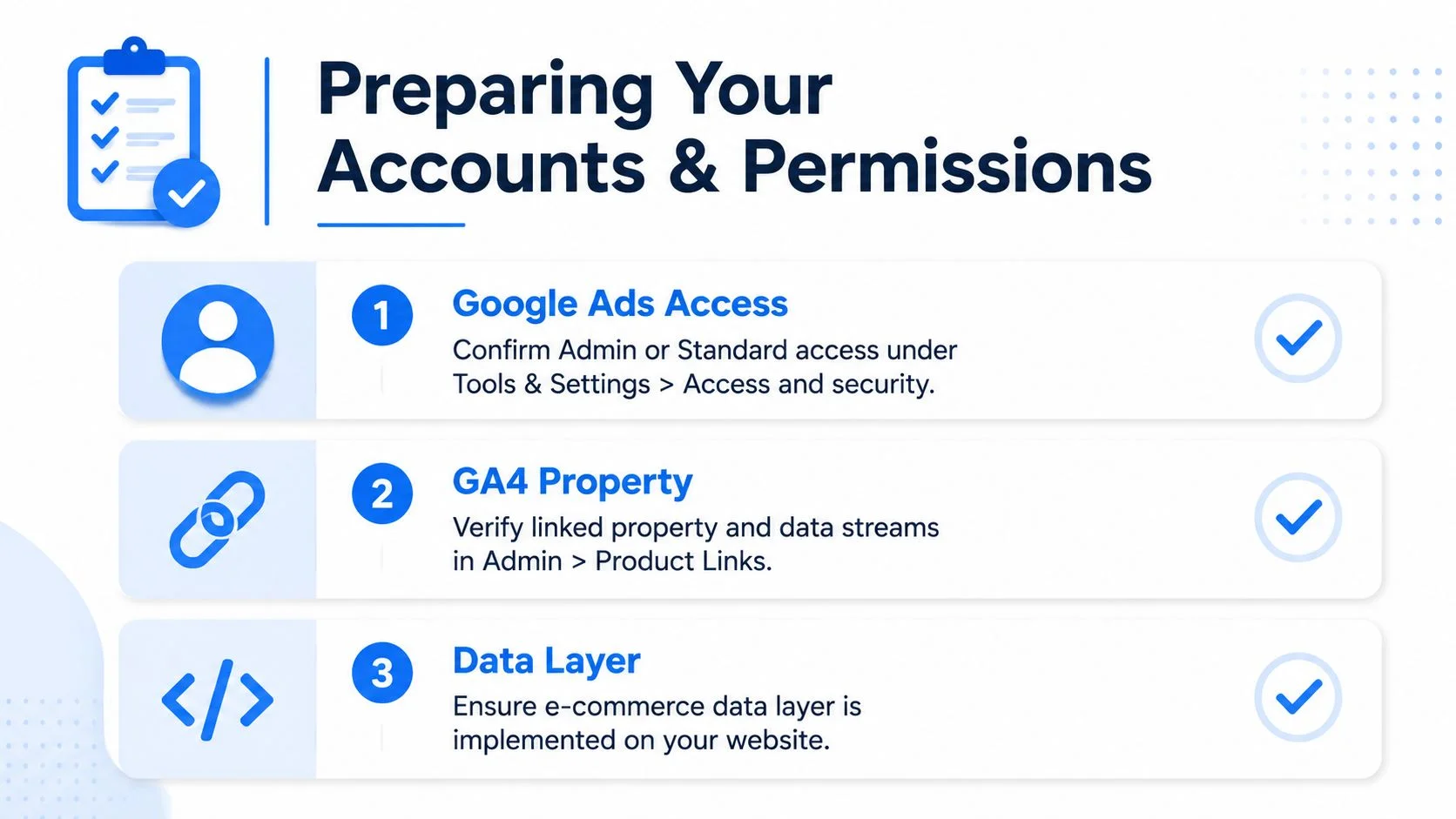
Start in Google Ads, then go to Tools & Settings > Access and security and confirm the user has Admin or Standard access. If you are setting this up for a client, verify that before touching conversion settings.
Move to GA4 and confirm the property belongs to the right Google account and the data stream matches the live site. The non-www and www versions matter if the site structure is inconsistent, because the stream and the live domain need to line up cleanly. Then check Admin > Product Links > Google Ads Links and make sure the link is active with Personalized advertising enabled, because imported conversions depend on that connection being correct.
Make sure Tag Manager can actually publish
If you use Google Tag Manager, check the publish state before you test anything else. The workspace has to be published, the container snippet has to be on every page, and the user needs publish permissions. A lot of local business sites only install the container on part of the site, then wonder why lead forms and thank-you pages do not line up. Partial coverage is enough to make testing messy and attribution incomplete.
Practical rule: if the admin list, the GA4 link, and the container publish state are not clean, do not touch conversion actions yet.
Turn on auto-tagging in Google Ads too, because preserving the GCLID is what lets click data survive into downstream attribution and later uploads. Google’s lead-gen guidance also stresses capturing GCLID across pages and saving it with the lead record for delayed or offline conversion use. That matters for service businesses, where a lead often closes long after the click.
If you are still sorting the account structure itself, our Google Ads setup service is the part that usually clears up the access and linking issues before tracking work starts.
Creating and Configuring Your Conversion Action
Once the accounts are ready, the conversion action setup is straightforward, but the interface still asks for business choices, not just technical ones. You decide what counts, how it counts, and whether Google should optimize toward it.
Start in the conversions summary
Go to Goals > Conversions > Summary, then select New conversion action. Choose Website as the source for form fills, quote requests, calls from site interactions, and thank-you page events. Google’s setup flow then lets you create the action and scan for the best connection method before you set up the tag (Google Ads help).
From there, you’ll usually choose between a manual website setup and an import from GA4. Manual setup gives you tighter control in Google Tag Manager, which is usually what I prefer for lead gen sites. GA4 import can work when your Analytics event structure is already tidy and you want unified reporting across channels.
Set the fields with the end use in mind
Name the conversion clearly, for example Lead Form Submit, Call From Website, or Booked Consultation. Pick the right category, usually Lead for service businesses and Purchase for ecommerce. For lead generation, set a consistent value if you want the system to treat every qualified lead the same way.
The count method also matters. Use One for leads, because multiple submissions from the same click usually do not help bidding. Use Every for ecommerce, because each transaction is a distinct event. Set the conversion window based on how long your sales cycle runs, and keep the reporting window aligned with the way leads close in your own pipeline.

Mark the action correctly for bidding
Many accounts drift out of shape. Primary conversions feed bidding, while Secondary conversions are for observation and reporting. If you only want Smart Bidding to optimize toward qualified form fills and calls, those should be Primary. Page views, button clicks, or soft micro-actions belong in Secondary unless you have a specific reason to prioritize them.
You’ll also need the Conversion ID and Conversion Label later in Tag Manager. Google states the Conversion ID is unique per Google Ads account and the Conversion Label is unique per conversion action. Keep both handy before you jump into GTM.
Make sure Tag Manager can publish
If you use Google Tag Manager, check the publish state before you test anything else. The workspace has to be published, the container snippet has to be on every page, and the user needs publish permissions. A lot of local business sites only install the container on part of the site, then wonder why lead forms and thank-you pages do not line up. Partial coverage is enough to make testing messy and attribution incomplete.
Practical rule: if the admin list, the GA4 link, and the container publish state are not clean, do not touch conversion actions yet.
Turn on auto-tagging in Google Ads too, because preserving the GCLID is what lets click data survive into downstream attribution and later uploads. The setup also matters for the guide to offline tracking for RevOps, since the conversion action you create now often becomes the container for later CRM uploads. For sites that need cleaner lead capture and form handoff, a stronger conversion-focused web design setup helps keep the tracking path intact from click to submit.
If you are still sorting the account structure itself, our Google Ads setup service is the part that usually clears up the access and linking issues before tracking work starts.
Adding Enhanced Conversions and Consent Mode
This is the part most guides still gloss over, and it is usually where tracking breaks in practice. A tag can be installed correctly and still miss the signal if consent blocks it or if user data is not passed in a usable form.
Enhanced conversions recover missing attribution
Google’s enhanced-conversions guidance now treats user-provided data as part of setup, and the documentation folds enhanced conversions for web and leads into one on or off setting (Google Ads help). In plain terms, hashed first-party data like email or phone can help recover attribution when browser-based tracking is weaker.
In Tag Manager, that means mapping variables correctly from your data layer and making sure the user-provided data field is filled before the conversion tag fires. If the form submits but the data layer never receives the email or phone value, enhanced conversions will not add much. The setup quality matters more than turning the feature on.
Consent Mode changes what fires and what gets modeled
Consent Mode is the other half of the setup. Google treats consent settings as part of the conversion workflow, because tags have to behave differently depending on whether the visitor accepted storage or analytics permissions (Google Ads help). Set the default states carefully, usually with ad_storage and analytics_storage handled through the banner logic rather than left open.
If you use a consent platform like Cookiebot or OneTrust, timing matters. Consent updates need to reach Tag Manager before the conversion tag depends on them. If the banner appears late, or if the update event never reaches the container, the conversion can be lost or only partly modeled. That is a sequencing issue, not a tag issue. For the broader context on how consent and data flow affect the full customer journey, see our full-funnel marketing strategy from awareness to customer.
Do not treat consent as a legal footer task. It is part of measurement infrastructure.
Preserve GCLID through the whole lead path
For lead-gen sites, the click ID has to survive redirects, hidden fields, and CRM handoffs. Google says to capture GCLID across all pages and save it with the prospect data so delayed or offline conversions can be uploaded later. If the GCLID disappears after a form submit, the bridge between the click and the lead record is gone.
That is why a hidden form field, a data layer variable, and the right trigger sequence matter. The browser session, the form, and the CRM all need to carry the same identifier forward. If one layer drops it, reporting gets fuzzy fast.
Verifying Tags and Testing in Production
Preview mode can look clean while production behaves differently. Caching, redirects, consent timing, and browser quirks often change what happens once a real visitor lands on the site. Verification needs to follow the full conversion path, not just a page load.
Test the real path, not the easiest path
Open Tag Manager Preview and run the full journey from ad click to form submission or call interaction. Use a real submission, not a page refresh, because the redirect after submit is often where tracking breaks. Confirm that the Google Ads conversion tag fires on the correct event and that any enhanced conversion data reaches the data layer before publish.
Then check the Google Ads conversions page. Google’s help notes that status and diagnostics live inside the conversions area, and recent conversion data can lag, so a broader review window gives a more complete picture (Google Ads help). Early results can still look weak if the lead has not had time to close.
Use the right tools and devices
If you import events from Analytics, check GA4 DebugView and confirm the event name and parameters match what you expect. The Tag Assistant Chrome extension is the quickest way to see whether a tag is loading, blocked, or waiting on consent. If Google Ads shows Tag inactive, that points to a firing problem. No recent conversions usually means the campaign has not sent enough qualifying traffic through the tracked path yet.
Mobile testing matters too. Consent banners often behave differently on smaller screens, and autofill can skip hidden fields if the form script does not catch it. I always test at least one mobile submission before I call a setup finished.
Useful habit: submit one test lead, then inspect the data layer, the conversion tag, and the CRM record in that order.
Troubleshooting Common Tracking Failures
When conversions don’t show up, the setup usually failed at one of a few handoff points. The browser is following the instructions you gave it, so the problem is usually consent timing, tag order, permissions, or a form field that never carried the click data through.
Use this checklist in the order below
| Failure Type | Where to Check | Correct State | Fix |
|---|---|---|---|
| Consent Mode blocking signals | GTM consent settings and banner callback | Consent update fires before the conversion tag | Adjust the banner timing and consent defaults |
| Broken Google Ads and GA4 link | GA4 Admin, Google Ads account links | The correct property is linked with access on both sides | Re-link the correct property and verify permissions |
| Unmarked key events in GA4 | GA4 Events and Key events area | The form or thank-you event is marked as a key event | Mark the event and re-import it into Google Ads |
| GCLID loss on redirects | Landing page, form submit, CRM handoff | GCLID persists from click to record | Store it in a hidden field and carry it through the funnel |
| Enhanced conversion data layer issues | GTM variables and preview mode | User-provided data populates before the tag fires | Fix the data layer push and variable mapping |
Google’s setup guidance points to this layered review because imported web conversions depend on account access, GA4 linkage, and key-event governance. Once you isolate the layer that failed, the fix is usually straightforward. The same kind of cleanup helps prevent wasted spend, as outlined in common Google Ads budget mistakes.
Use Tag Assistant before you change the account
Run the browser extension, submit a test lead, and watch the event order. If the conversion tag fires before consent updates, adjust banner timing. If the tag never loads, check the container or trigger. If the tag fires but data is incomplete, inspect the hidden field and data layer.
Testing should also follow the full user journey, not just the page load. A form can look fine in preview mode and still lose the click ID after a redirect or CRM handoff. Keep the test inside production, with the same browser, device, and consent behavior your visitors see.
For a local lead-gen site, I also check whether the GCLID survives every step from ad click to saved record. If it disappears, Google Ads can still serve traffic, but you lose the link between spend and lead quality. That usually means a hidden field, redirect rule, or form script needs attention before the account side does.


